Records and reporting
Reports and the CAA audit pack
Generate the three operations reports, and build a CAA audit pack through its six-step wizard.
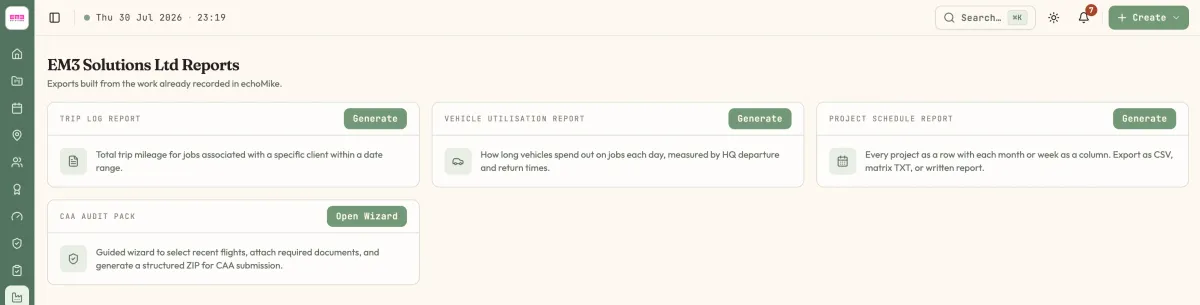
/organization/reports holds two different things: three operations reports you generate on demand, and the CAA audit pack — a guided assembly of everything a regulator will ask for. Generate reports for your organisation.
Before you start
You need the Manage org settings permission, plus at least one of the advanced reports or CAA audit pack plan features. Without the permission you see You need the Manage org settings permission to view reports.; without either feature, Reports are not included in your current plan. The CAA Audit Pack card additionally needs its own feature — CAA audit pack is not included in your current plan.
The two vehicle reports read trip data from ABAX. Without that integration linked, their cards read Connect to ABAX to generate trip reports and Connect to ABAX to generate vehicle utilisation reports.
Before building an audit pack, clear any Annex 2 drift on the flights you intend to include — see Troubleshooting below. It is far quicker to fix it first than to be rejected at the review step.
Steps
Open the wizard
On the CAA Audit Pack card, select Open Wizard. A Pack Summary panel tracks your progress down the right-hand side, showing Audit date, Flights and your Step as
2 / 6.Set the audit due date
Step 1 is Audit Date, headed Audit Due Date. This anchors the whole pack — the flight window and the maintenance window are both measured from it.
Select the flights
Step 2, Select Flights, lists the candidate flights. Choose the ones the pack will cover; your choices gather under Selected flights.
Check the flight documents
Step 3, Flight Documents, checks each selected flight for its paperwork. A flight whose job has completed in-app forms shows Ops Pack — Present; one with none shows Ops Pack — Missing (no in-app forms completed).
Attach the organisation documents
Step 4, Organisation Documents, covers the three things the CAA asks of the operator rather than the flight: Operations Manual Vol 1, Operations Manual Vol 2 and Operator ID.
Confirm the maintenance records
Step 5, Maintenance Records, gathers maintenance evidence, including a Per-Flight · 3-month window section covering the airframes that flew.
Review and generate
Step 6 is Review & Generate. Audit Summary lists every flight against its evidence rows — Ops Pack, Signed CAP2606 Annex 2 survey and Survey date matches flight — each marked present or missing. When it is clean, select Generate new revision.
Screenshot pending
CAA audit pack wizard, step 6 Review & Generate: the Audit Summary table with per-flight evidence rows Ops Pack / Signed CAP2606 Annex 2 survey / Survey date matches flight, at least one row failing, plus the Pack Summary side panel showing Step 6 / 6. Needs several selected flights with mixed evidence.
Options
Trip Log Report
Generate a report showing trip mileage for a client’s jobs. Set a Date Range and a Client, then export as CSV with Miles, CSV without Miles, TXT with Miles or TXT without Miles. New Report resets the inputs.
Vehicle Utilisation Report
Track vehicle HQ departure and return times. Set a Date Range and select Download CSV. When it is ready the dialog reads Report generated. Download the CSV to view results.
Project Schedule Report
See which months (or weeks) each of a client’s projects has work booked into. Empty cells stay visible so gaps are obvious. Set a Date range, a Client and a Granularity of Months or Weeks, then Generate report. Export it three ways: CSV, TXT matrix or Formatted report. Change inputs takes you back without losing the run.
What happens next
The audit pack is generated as a revision, so building it again produces a new one rather than overwriting what you already sent. Once a pack exists, the button reads Generate again.
Everything the pack contains is assembled from records already in echoMike — the forms in each job’s Ops pack, the maintenance sign-offs, the controlled document revisions. Nothing is retyped for the pack, which is the point: what you submit is what you recorded at the time.
Troubleshooting
“This Annex 2 no longer matches the job’s crew and aircraft.” This warning appears on the on-site survey itself, not in the wizard. It fires when the generated CAP2606 Annex 2 disagrees with the job’s current pilot or aircraft links, listing each mismatch as UA serial number: declared G-ABCD — job has G-WXYZ, and it is explicit about the consequence: The CAA audit pack will reject this flight until they agree. A survey that has already been signed needs a fresh final review after regenerating.
Select Regenerate on that banner. If the survey had already been signed, redo the final Remote Pilot review afterwards — regenerating replaces the declared values, so the previous signature no longer covers what is on the page. Then return to the wizard.
A flight shows “Ops Pack — Missing”. No in-app forms were completed on that job. Either complete them — see The job Forms tab — or drop the flight from the selection.
“Survey date matches flight” is failing. The on-site survey’s recorded date does not line up with the flight it is meant to document. Open the survey and correct the date, then regenerate the pack.
A report card is disabled. Both vehicle reports depend on ABAX. Link it under Integrations and branding.
Last reviewed 28 July 2026 · verified against 18e3cb4