Set up your organisation
Manage people, teams and roles
Work the employee roster: get people into the organisation, group them into teams, and give them a role — including the one thing about roles that surprises everybody.
Everyone in your organisation lives at /organization/employees, behind the Employees tab of Settings. The page splits into four panes — Directory, Teams, Permissions and Linked accounts — and each one answers a different question about a person.
Before you start
Needs the Manage employees permission to see the page at all; without it you get Access denied. The Permissions pane needs the stronger Edit permissions permission on top, and is hidden otherwise.
Steps
Get people into the organisation
Invitations are handled in your organisation profile, not in echoMike. Select your organisation name at the top of the sidebar to open it, and invite people from there.
Check the Directory
Open OrganizationSettingsEmployees (
/organization/employees). Directory is the default pane. Use Search people… to find someone, then set the things that only make sense per person: their pilot designation, their home location, and their flight currency link.When someone leaves, use Mark as left rather than deleting them — their logbook entries and signed forms have to stay. Reactivate employee puts them back.
Build your teams
Select Teams, then New team. Give it a Name (for example
Survey Crew) and pick its Members. Use Edit team to change either later.Assign a role
Select Permissions, then select a person to open their permission sheet. Under Role, select Manager, Surveyor, Viewer or one of your own roles. The badge at the top of the sheet updates to the role name.
Under Permissions, the individual toggles are grouped by area with a running N selected count. Tick or untick to fine-tune. Every change saves immediately — there is no Save button.
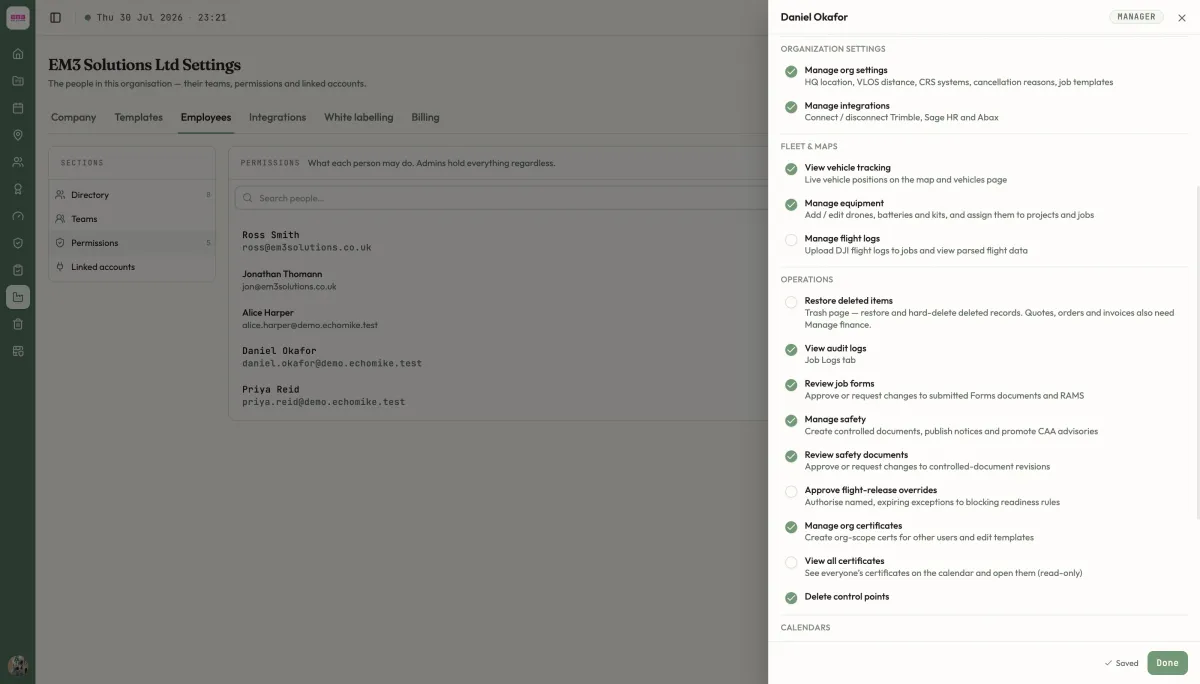
Applying a role, then adjusting individual toggles beneath it.
Options
Roles are a starting point, not a link
This is the part that catches people out. Applying a role copies its permissions onto the person. It does not connect them to the role.
Two consequences follow:
- Editing a role never reaches people who already have it. If you widen Surveyor next month, everyone currently marked Surveyor keeps exactly the permissions they were given on the day. You have to re-apply the role to each of them.
- The badge is a guess, not a record. echoMike works out which role to display by comparing someone’s permission set against every role for an exact match. Untick a single toggle and the badge flips to Custom — nothing is broken, the set just no longer matches anything by name.
Building your own roles
The three built-in roles are read-only. To make your own, go to OrganizationSettingsTemplates and select Permission roles. See Templates.
What happens next
The person’s new permissions apply the moment you toggle them — no sign-out needed. What they can see in the sidebar changes to match, which is why two colleagues comparing screens often see different menus. For what each toggle actually unlocks, see Permissions reference; for how permissions, plans and ownership combine, see How access works.
Last reviewed 28 July 2026 · verified against 18e3cb4