Set up your organisation
Set your organisation details
Fill in the Company tab — operator credentials, HQ location, coordinate systems, VLOS distance and cancellation reasons — so the rest of the app has something to work from.
The Company tab is the root of everything downstream. Your operator credentials print on the Pre-Flight Survey, your coordinate systems limit what a project can be set up in, and your VLOS distance decides how big every new flight area’s TOAL zones start out. Ten minutes here saves a lot of correcting later.
Before you start
Needs the Manage org settings permission. Without it the page shows You need the Manage org settings permission to view this page.
Have your CAA Operator ID and operating authorisation reference to hand, plus the current PDF of your Operations Manual.
Steps
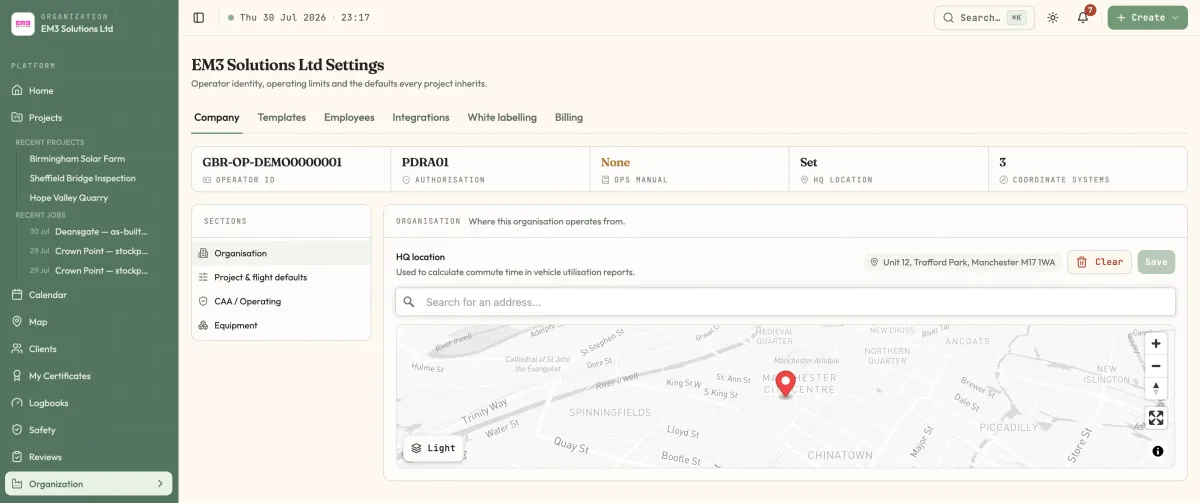
Open the Company tab
Go to OrganizationSettings (
/organization). Company is the first of six tabs and the one you land on. A second list down the left side splits it into Organisation, Project & flight defaults, CAA / Operating and Equipment.Set your HQ location
Select Organisation. Under HQ location, type into Search for an address… and pick your depot from the results. This is what commute time is measured from in the vehicle utilisation reports.
Choose your coordinate systems
Select Project & flight defaults. Coordinate reference systems controls which systems projects in this organisation can pick from — add the ones you actually deliver in and leave the rest off, because this list is the whole menu a project author sees.
Set the cancellation reasons and VLOS distance
Still under Project & flight defaults:
- Cancellation reasons — the pre-defined reasons offered when someone cancels a job. Type into Add a reason… and add one per line of your own vocabulary. Consistent reasons here are what make cancellation reporting worth reading.
- Maximum VLOS distance — in metres, the default radius the flight area TOAL tool draws around each vertex. Each flight area can override it.
- Flight area operational defaults — copied into every newly created flight area. Existing areas keep their own values until someone explicitly applies the current defaults to them.
Record your operating credentials
Select CAA / Operating. Fill in Operator ID (
GBR-OP-…), Operating authorisation (usuallyPDRA01) and OA reference, then select Save. These three are referenced on the Pre-Flight Survey.Upload your Operations Manual
Under Operations Manual, enter a Version label such as
V5.1, then choose the PDF. Repeat for Ops Manual Vol 2 if you hold one.
Options
Equipment tags. The fourth section, Equipment, only appears if you also have the Manage equipment permission. It defines the tag vocabulary available on equipment records.
Flight currency rules. The CAA / Operating section carries a Configure button through to /organization/flight-currency-rules, where pilot recency requirements and equivalent aircraft groups are set. Aircraft are classified into those groups from their equipment records.
What happens next
New projects can now be created against your coordinate systems, and new flight areas inherit your VLOS distance. Your operator credentials flow into the Pre-Flight Survey and into the CAA audit pack — without an Operator ID document, a pack export is blocked.
Last reviewed 28 July 2026 · verified against 18e3cb4