Start here
Finding your way around
A map of the sidebar and what gates each entry, plus the header controls, the notification bell and the tab bars on jobs, projects and Settings.
echoMike has one persistent sidebar on the left, one header bar across the top, and a tab bar on every page that needs one. Entries you cannot use are hidden rather than greyed out, so two people looking at the same screen can genuinely see different menus.
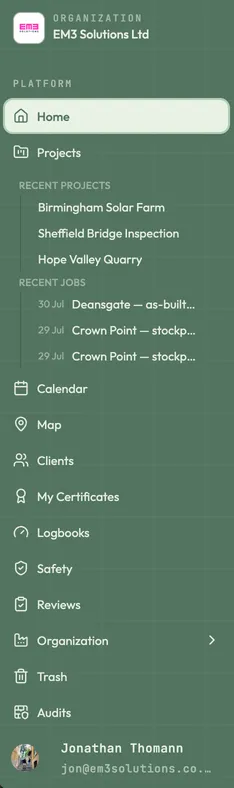
The sidebar
The organisation name sits at the very top. Selecting it opens your organisation profile, where members and invitations are managed. It is not a switcher — you belong to one organisation and there is no way to change it from here.
| Entry | Route | What gates it |
|---|---|---|
| Home | / | Nothing — always visible |
| Projects | /projects | Nothing — always visible |
| Calendar | /calendars | Nothing — always visible |
| Map | /map | Nothing — always visible |
| Clients | /clients | Nothing — always visible |
| My Certificates | /my-certificates | Nothing — always visible |
| Logbooks | /flight-logbook | Nothing — always visible |
| Safety | /safety | Nothing — always visible |
| Reviews | /reviews | Review job forms or Review safety documents |
| Organization | /organization | Appears only if at least one of its sub-items does |
| Trash | /trash | Restore deleted items |
| Audits | /audits | View audit logs · Business plan |
Organization expands into five sub-items, each with its own gate:
| Sub-item | Route | What gates it |
|---|---|---|
| Settings | /organization | Manage org settings, Manage employees or Manage integrations |
| Certificates | /organization/certificates | Manage org certificates · Pro plan |
| Vehicles | /organization/vehicles | View vehicle tracking · Business plan |
| Equipment | /organization/equipment | Manage equipment |
| Reports | /organization/reports | Manage org settings · Pro plan |
The header
Left of the header: the sidebar collapse toggle and the clock. Right of it, in order:
- Search… — opens the command palette.
⌘Kdoes the same from anywhere. - The light/dark toggle. Dark is the default.
- The notification bell, carrying an unread count badge.
- Create — a menu with New job, New project and New client.
The notification bell
Selecting the bell opens the Notifications list. A coloured dot marks severity; unread rows sit on a tinted background. Selecting a row marks it read and navigates to whatever it is about.
Hovering a row reveals two icon buttons: Mark as read / Mark as unread, and Dismiss. Mark all read appears in the panel header whenever anything is unread, and Load more pages back through the history.
Page tab bars
Three pages carry their own tab bar.
| Page | Always shown | Conditional tabs |
|---|---|---|
| Job — /jobs/… | Overview · Spatial · Weather · Forms · Equipment | Logs (Manage flight logs, or organisation admin) · Billing (Manage finance) |
| Project — /projects/… | Overview · Spatial · Equipment · RAMS | Files (View files) · Billing (Manage finance) |
| Settings — /organization | Company · Templates · Employees · Integrations · White labelling · Billing | See the table below |
The six Settings tabs
Each Settings tab is its own route, so you can link straight to it.
| Tab | Route | What gates it |
|---|---|---|
| Company | /organization | Manage org settings |
| Templates | /organization/templates | Manage org settings |
| Employees | /organization/employees | Manage employees |
| Integrations | /organization/integrations | Manage integrations · Business plan |
| White labelling | /organization/white-label | Manage org settings · Business plan |
| Billing | /organization/billing | Organisation admin only |
Inside Company, Templates, Employees and Equipment, a second left-hand list splits the page further — for example Company holds Organisation, Project & flight defaults, CAA / Operating and Equipment.
Last reviewed 28 July 2026 · verified against 18e3cb4