Access, plans and administration
Billing, seats and storage
Change your plan, add seats or storage, and clear a read-only or seat-blocked account.
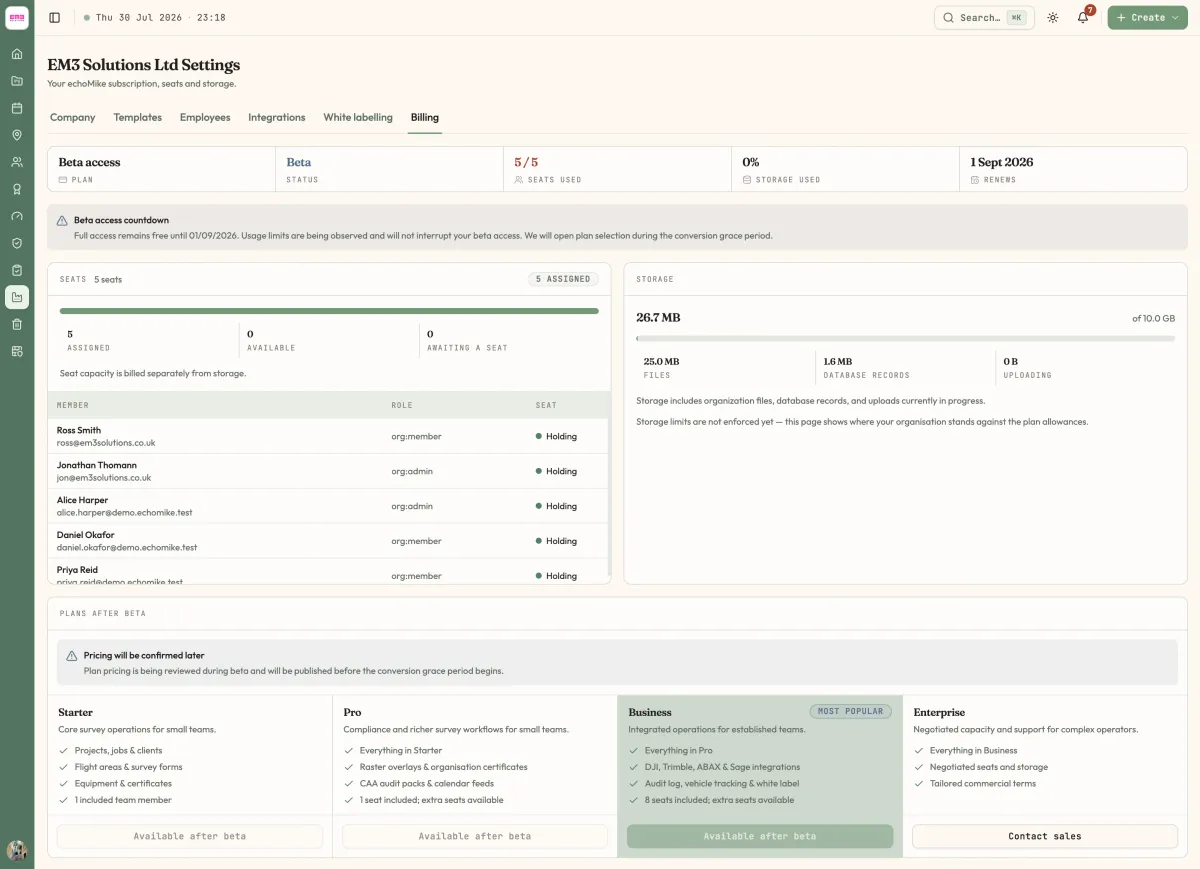
Your echoMike subscription lives at /organization/billing. This is the page that resolves every Upgrade required, No seat available and Plan limit reached message in the product.
Before you start
Billing is restricted to organisation admins. No permission grants it — not even Manage finance, which covers invoicing your own clients and nothing else. This is deliberate: an organisation that has run out of seats must always have someone able to fix it, so the billing page stays reachable even when the rest of the account is restricted.
Steps
Open Organization, then the Billing tab
Go to OrganizationSettingsBilling or straight to
/organization/billing. If you are not an admin the tab is not there.Check the plan and status
The panel shows your current plan and its subscription status. A status of Past due, Grace or Canceled matters more than the plan name — a cancelled organisation is read-only whatever plan it was on.
Review seat and storage usage before changing anything
Usage is shown against your limits. Most “we need to upgrade” moments turn out to be a leaver still occupying a seat or a project full of raw imagery, both cheaper to fix than a plan change.
Change the plan, or add seats or storage
Choose the plan you want, or add seats. Starter, Pro and Business buy extra storage in 25 GiB blocks, up to four blocks; Enterprise storage is negotiated. Starter cannot add seats at all — moving off Starter is the only way to add a second person.
Confirm the change
Confirm in the dialog. Feature access updates for the whole organisation; ask colleagues to reload echoMike if a newly unlocked page is still showing Upgrade required.
Options
Freeing a seat instead of buying one
A seat is consumed by each active user. Marking someone as having left at /organization/employees releases their seat while keeping their historical records, signatures and logbook entries intact. Deleting people is not required and not advisable — their names appear on past flight records.
Clearing a read-only organisation
“Organisation is read-only. Existing data remains available, but changes require an active subscription.” means the subscription lapsed. Everything is still readable and exportable — nothing has been deleted. Restore an active subscription on this page and write access returns immediately.
Reducing storage
Storage counts uploaded files: project files, orthophotos, survey data, evidence photos and flight logs. Orthophotos and raw survey imagery dominate most accounts. Deleting files frees space, but note that items in the Trash have not been permanently removed yet and still count until they are.
What happens next
Plan changes take effect immediately across the organisation. Anyone who was seeing Upgrade required on a newly included feature will see it after their next page load.
Troubleshooting
If the Billing tab is missing entirely, you are not an organisation admin — ask whoever set up the account. Admin rights are granted in your identity provider rather than on the employee record, so an admin adding you at /organization/employees will not produce them.
Last reviewed 28 July 2026 · verified against 18e3cb4